IMAGE→VIDEOCreate video

For drawn and designed images

Picture to Video: Illustrations & Artwork

Picture to video gives designed images a time dimension: a painted sky can drift, an illustrated landscape can gain depth, and a product render can become a short reveal. To animate illustrations well, plan around the artist's visual rules. Artwork animation has different constraints from photography: an outline should stay deliberate, flat shading should remain flat, and invented depth should not overpower the composition.

Set your artwork in motion
AI VIDEO STUDIO
JPG, PNG, WebP · 10 MB
Length
Quality

Generation usually takes a few minutes. Keep this tab open while we work.

01

Protect the style before choosing the action

Look at how the source was made. A watercolor depends on soft pigment edges, while a vector-style drawing depends on clean shapes and uninterrupted lines. Describe the movement and explicitly ask to retain those qualities. Avoid stacking stylistic terms that conflict with the source, such as asking a flat poster to become photorealistic. Small motions in secondary elements often leave more of the artwork intact than making the main character perform a complex action.
02

Create depth only where the drawing supports it

A flat picture does not supply a full three-dimensional scene. A large orbit can expose imagined sides of buildings, characters, or packaging. Start with a shallow push-in or a slight separation between foreground and background. Use the horizon, overlapping shapes, and perspective already present as your guide. If an illustration has no perspective at all, a fixed viewpoint with one moving detail may be more faithful than trying to manufacture a cinematic camera path.

03

Keep lettering and product geometry under review

Product renders and brand graphics need especially careful inspection. Small labels, logos, and repeated patterns can change between frames even when the object appears stable at first glance. Request a stationary object with subtle background activity for an initial experiment. Read any lettering at full size before approving the result. When exact brand reproduction is essential, consider adding the approved logo as a separate overlay in a video editor after generation instead of relying on the model to redraw it correctly.

04

Export a usable source from your design file

Rasterize vector artwork to PNG, JPG, or WebP before uploading; the editor does not accept SVG project files. Flatten transparent artwork against the background you want to see in the clip. Leave breathing room around the object so the requested movement does not cut off important edges. For a rendered product, choose a view that already shows the surfaces needed for your reveal. Save the original layered file separately, since the generated video is not an editable replacement for your illustration or design document. Review the export at its actual pixel size, paying particular attention to narrow gaps between shapes, small decorative marks, and edges that touch the crop.

For drawn and designed images · Real generation examples

From a familiar still to five seconds of motion

Compare each source image with a video we generated using Runway through KIE, the model used by this editor. These are AI interpretations, not original recordings or restorations. Each example includes the actual motion prompt and notes on the result.

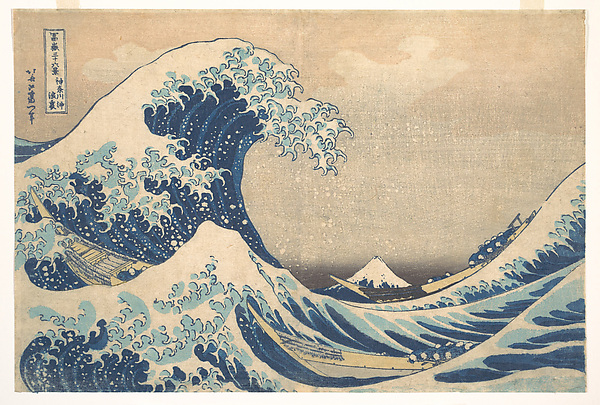
01The Great Wave — moving ink and foam

Runway via KIE · 5s · 720p
Before · original image
Original source for The Great Wave — moving ink and foam
After · AI-generated interpretation

The wave and foam move while the woodblock palette remains recognizable. Motion is much larger than requested, and the wave contours reshape; this is a stylized animation rather than a faithful reconstruction of the print.

View the exact motion prompt
The illustrated wave gently rolls forward and small foam droplets fall back toward the sea. The boats rock slightly. Preserve the original Japanese woodblock print, flat indigo palette and crisp ink outlines. Mount Fuji stays fixed. Locked camera, no scene change.

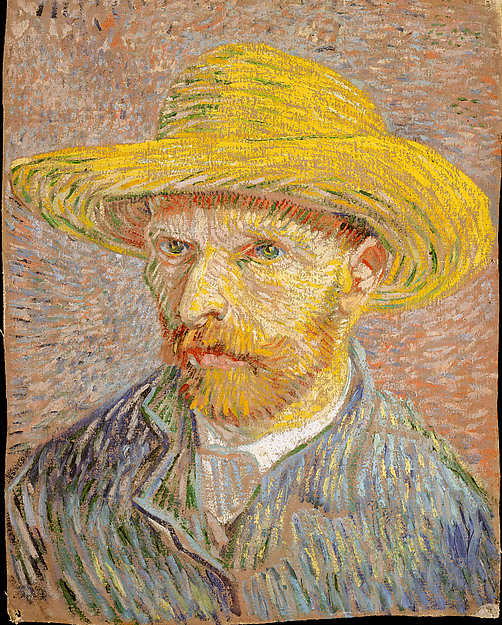
02Van Gogh — a painted portrait blinks

Runway via KIE · 5s · 720p
Before · original image
Original source for Van Gogh — a painted portrait blinks
After · AI-generated interpretation

The portrait blinks while retaining its painted texture. The head also shifts slightly and the painted edges flex. Compare the face with the still if preserving the original artwork is essential.

View the exact motion prompt
The painted man blinks once slowly and makes a barely perceptible breathing movement. Preserve the exact face, yellow straw hat, blue clothing, thick brushstrokes and painted background. Fixed camera, no smile, no speech, no photorealistic transformation.

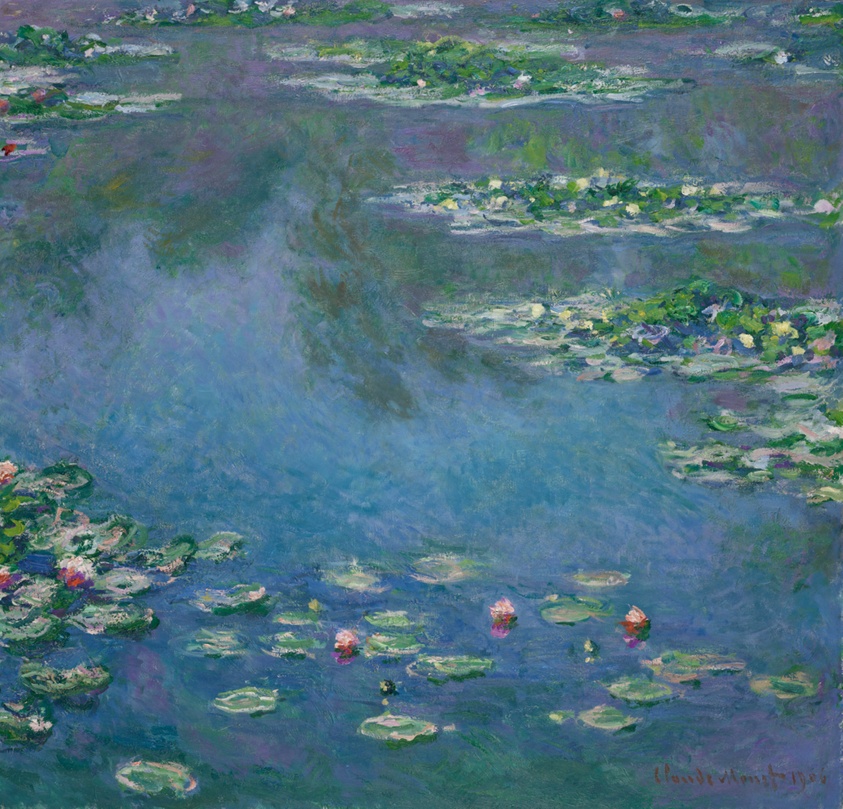
03Water Lilies — ripples in painted water

Runway via KIE · 5s · 720p
Before · original image
Original source for Water Lilies — ripples in painted water
After · AI-generated interpretation

The pond surface ripples subtly while the palette and lily-pad layout remain recognizable. Small painted details soften and shift; the clip adds motion rather than restoring the painting.

View the exact motion prompt
Tiny gentle ripples move through the painted water around the lily pads. The flowers drift almost imperceptibly. Preserve Monet’s soft brushwork, colors, reflections and composition. Static camera, subtle movement only, no new objects.
Set your artwork in motion

For drawn and designed images: questions answered

Can I upload a vector or layered illustration file?

Export the artwork as JPG, PNG, or WebP first, within the 10 MB upload limit. SVG, PSD, and layered design files are not accepted by this editor.

Why do fine outlines wobble in an animated drawing?

The model redraws visual information across frames, so thin strokes may shift. Try a clearer export, less subject motion, and a request to preserve the original linework. Check the result at normal playback size.

Will a transparent logo remain transparent in the video?

This workflow does not promise an alpha-channel video. Place the logo on the intended solid background before uploading, and use dedicated compositing software when transparent output is required.

Is this suitable for an exact product demonstration?

Use it for motion concepts and review the details carefully. It can invent geometry or alter labels, so a generated render should not be treated as evidence of a product feature or mechanical behavior.

Service details: Terms of Use · Privacy Policy