Photo animation tutorial · Step by step
How can I animate a photo?
To animate a photo with AI, upload a still image, describe one movement, and generate a short video. Start with a clear subject and a small action, such as a flower swaying or steam rising. You do not need a sequence of photos or animation experience.
AI invents movement from a still image. It does not recover a real event or guarantee that every detail stays unchanged. This tutorial walks through the process, compares subject motion with camera motion, and shows what to check before sharing.
First, decide what should move
Move a subject
A flower swaying, a leaf fluttering, or a small gesture.
Name the visible part that should move and ask for a fixed camera. Leave room around the subject so it can move without reaching the edge.
See this motion exampleAdd movement to the scene
Steam rising from a cup or water rippling.
Describe one small environmental change. Use a solid object or straight background edge as a reference when checking unwanted movement.
See this motion exampleMove the camera
A gentle approach toward a still object.
Ask for a short, slow push-in. A large orbit needs the model to invent hidden surfaces, so start with a modest change in viewpoint.
See this motion exampleFor an exact logo rotation, timed caption, or a carefully aligned loop, use a timeline-based editor with keyframes. This photo animator guides generated motion with text; it does not include a motion brush, selection mask, or frame-by-frame timing controls.
Animate your first photo in five steps
- 1
Choose a clear source photo
Use a JPG, PNG, or WebP image up to 10 MB. Choose one obvious subject with space around it. Avoid crowded scenes, tiny faces, and fine lettering for your first experiment. Keep the original file so you can compare it with the result. To follow our examples, download one of the newly generated source images below.
- 2
Upload your image
Open the photo animator, select Drop a photo here, and choose your file, or drag it into the upload area. Check the preview before continuing. You do not need an account or payment details. Use a photo you have permission to process and share.
- 3
Write one specific motion prompt
In Describe the motion, name the subject, its action and pace, then say what should stay still. A useful pattern is: [subject] + [small movement] + [camera instruction] + [details to preserve]. For example: The yellow flower sways gently left and right. Locked camera. Keep the pot and background still. Prompts accept 3–1,200 characters; extra instructions do not guarantee extra control. The examples below include the exact prompts used for their videos.
- 4
Choose your settings and generate
Start with 5 seconds at 720p. You can also choose 5 seconds at 1080p or 10 seconds at 720p. Select Animate my photo for free and keep the tab open while the request runs. Processing can take a few minutes. Free access is limited to up to three requests per IP address per UTC calendar day, subject to availability. People sharing a network share the allowance; a provider failure may still use an attempt.
- 5
Review the whole clip, then save
Watch the beginning, middle and end. Compare the subject's shape, background edges and framing with your source. Select Download video to open the returned video, then use your browser's save option. Save it promptly because provider links may expire and there is no account history. If something looks wrong, change one instruction before spending another attempt.
Three motion examples you can try
These examples were created for this tutorial: the source images were generated with KIE, then animated with Runway through KIE using five-second, 720p settings. The GIFs are locally converted previews of those videos. They show actual outputs, including any deviations from the prompt. They are not recordings of real scenes.
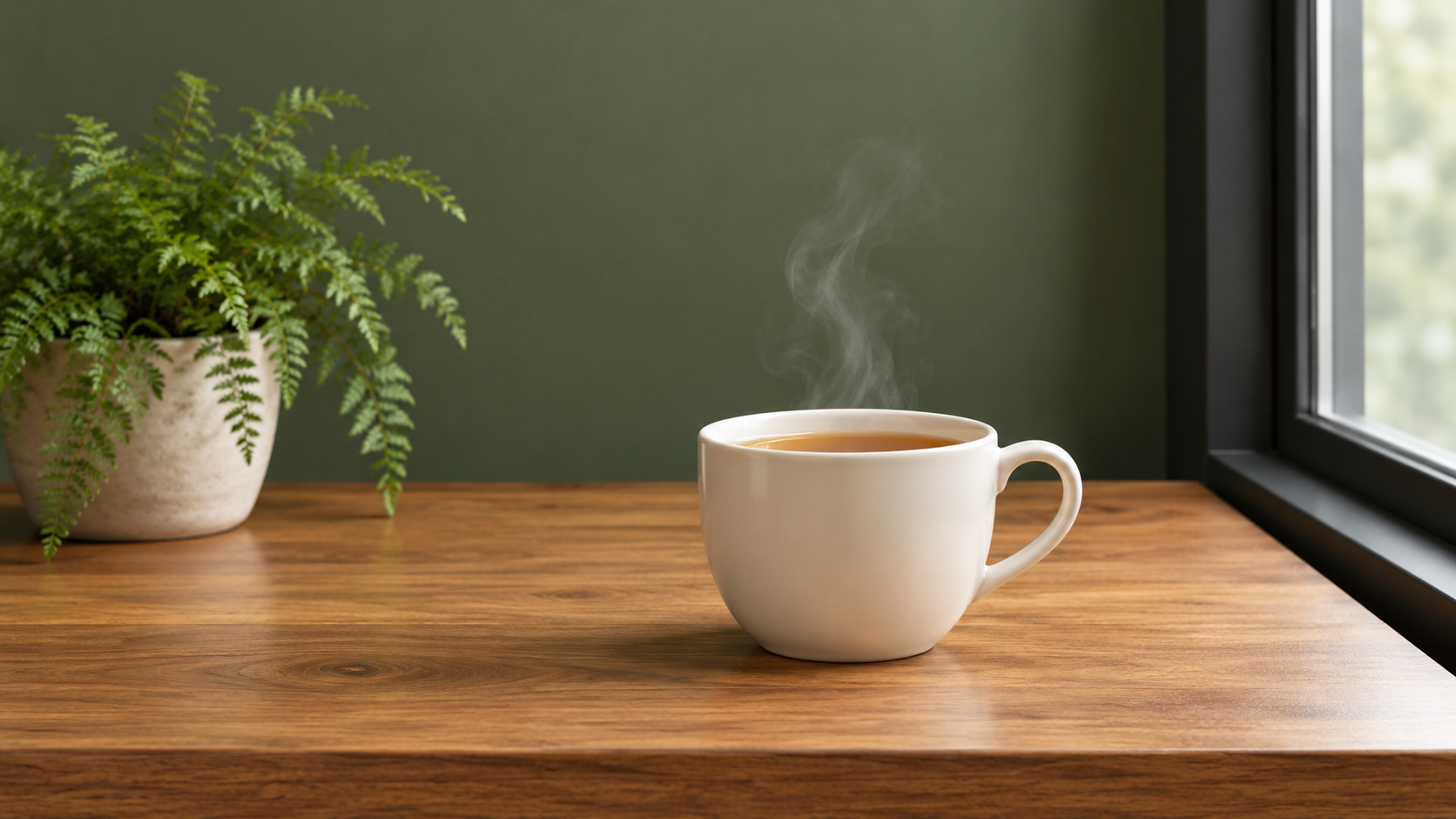
The two cup examples start with the same image. One asks for steam movement with a fixed camera; the other asks for a camera push-in. Compare the cup rim and window frame to see whether the scene stays stable. The prompt describes the target; the review under each example describes what actually happened.
Experiment 01 · 5 seconds · 720p
Move the flower, keep the camera still
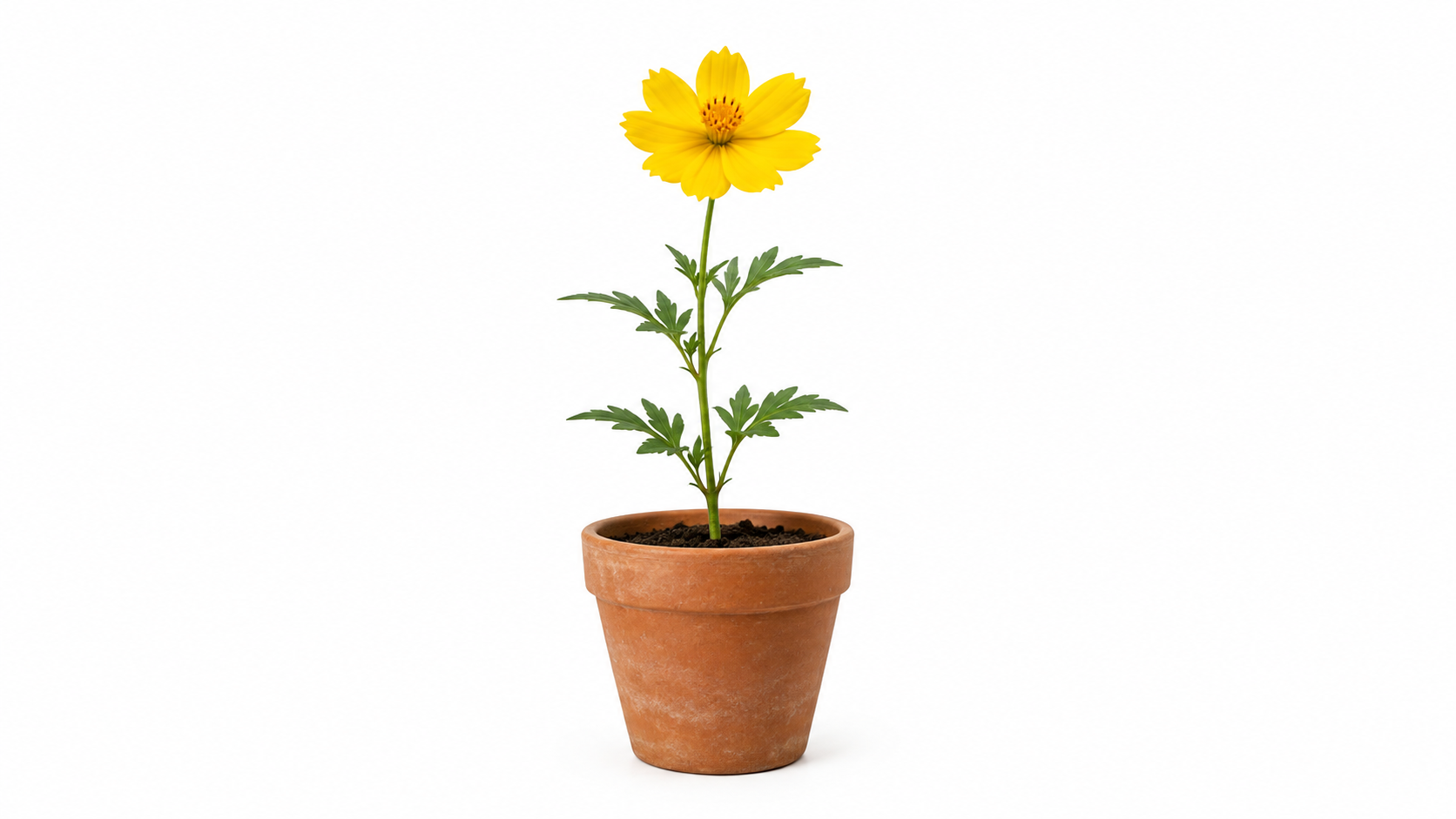
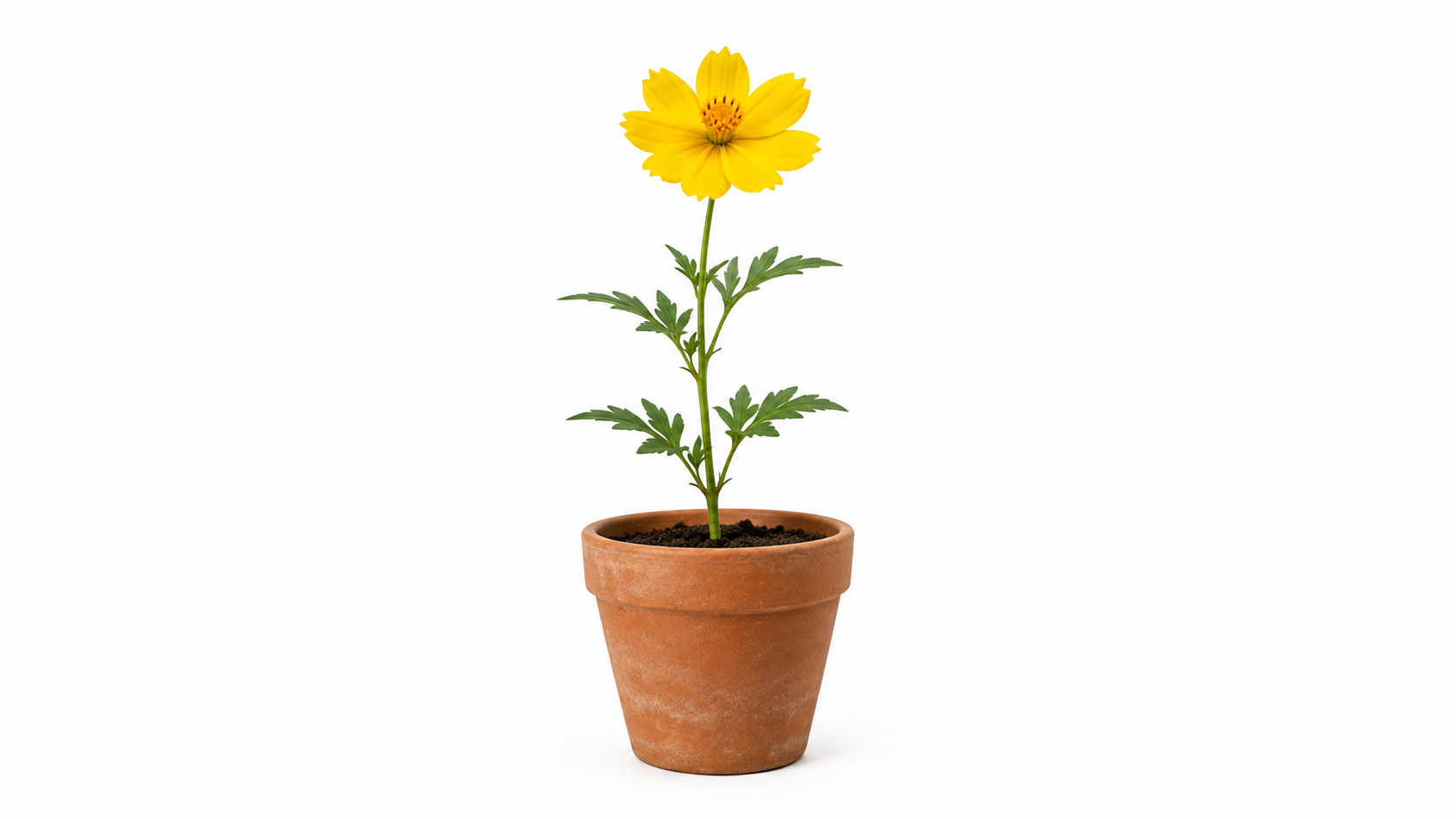
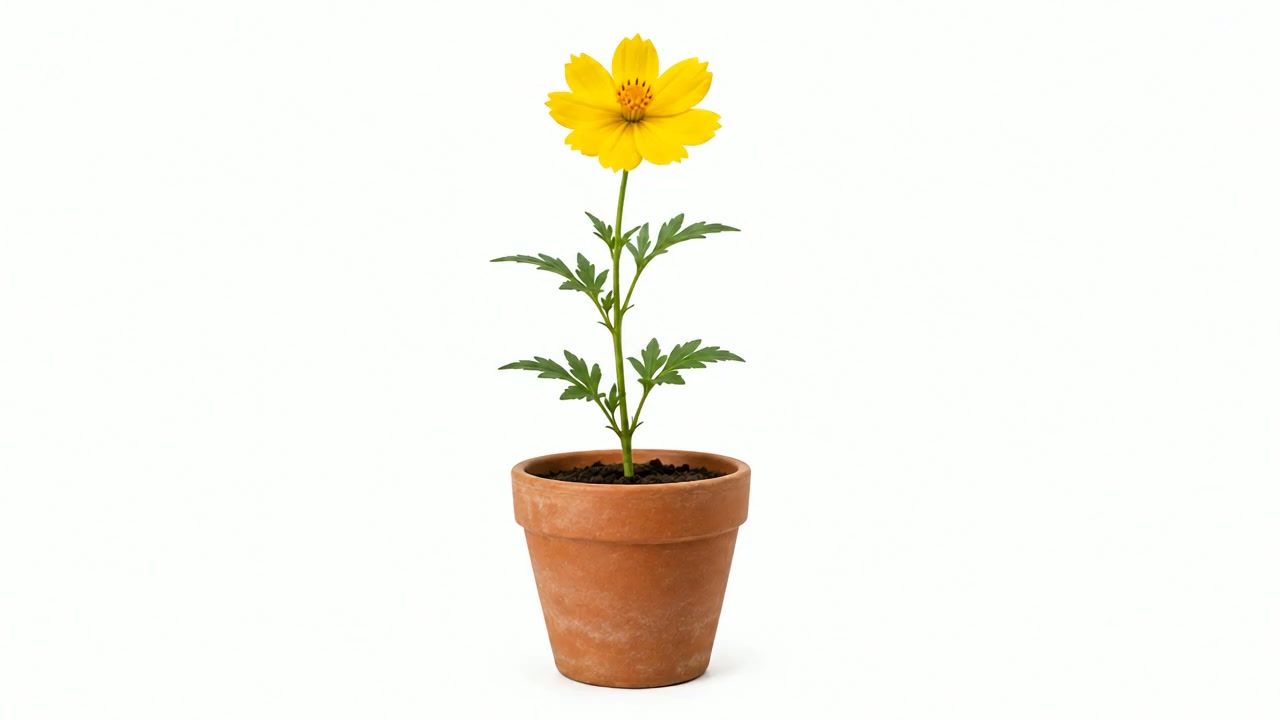
Starts only when you press Play. Stop returns to the first frame.
What actually happened: The blossom and upper stem sway from side to side while the pot stays in place. Some petal edges and leaves change shape during the movement. This is a useful small-motion example, but it does not preserve every plant detail exactly.
Exact motion prompt
Locked camera. The yellow flower and upper stem sway gently a small distance left and right in a light breeze. Subtle petal movement. Keep the terracotta pot and white background still. Preserve the flower shape and color, one blossom only. Constant lighting, no zoom, no new objects.
Watch the original video
Download original videoExperiment 02 · 5 seconds · 720p
Animate steam in a still scene
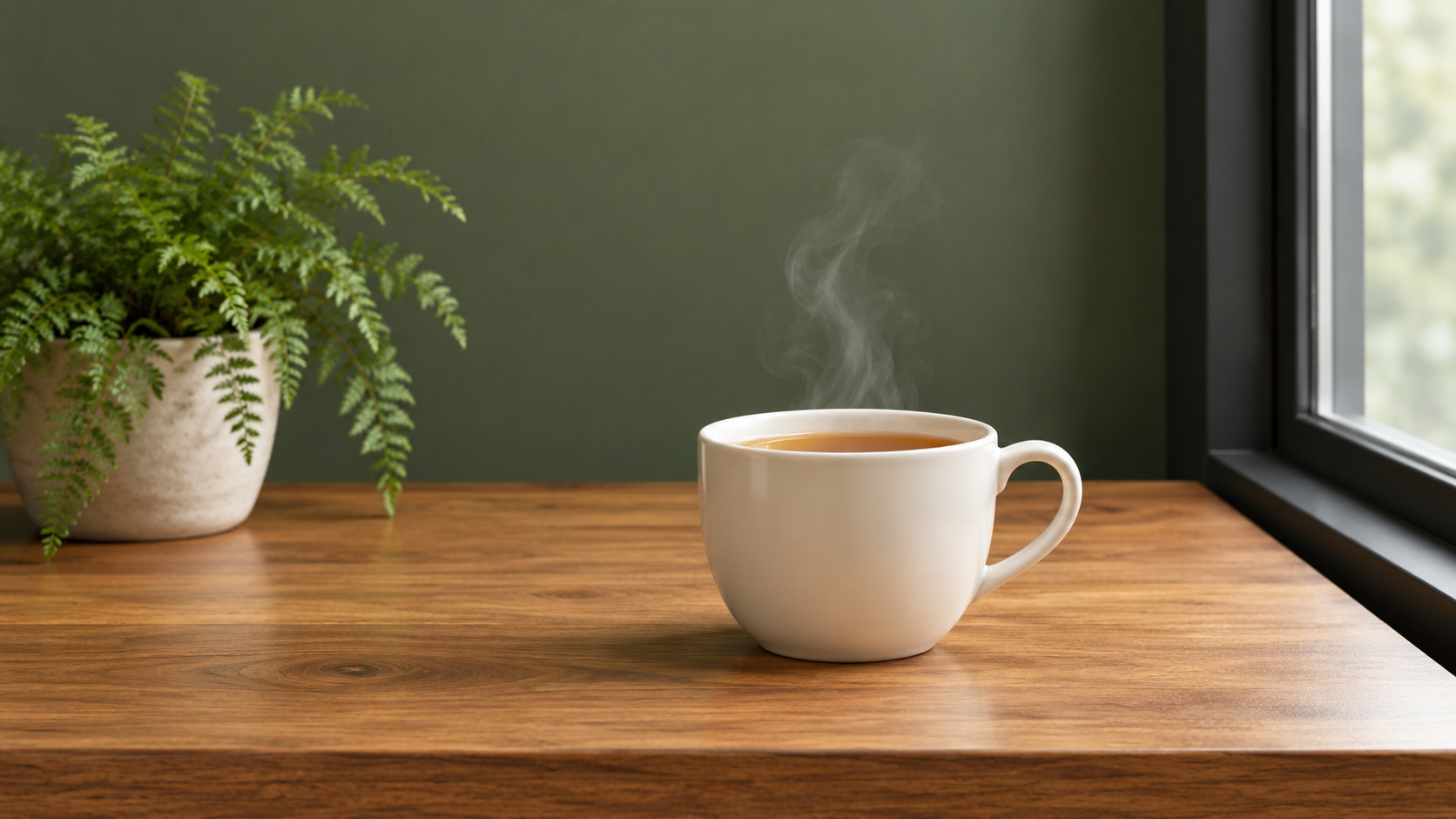
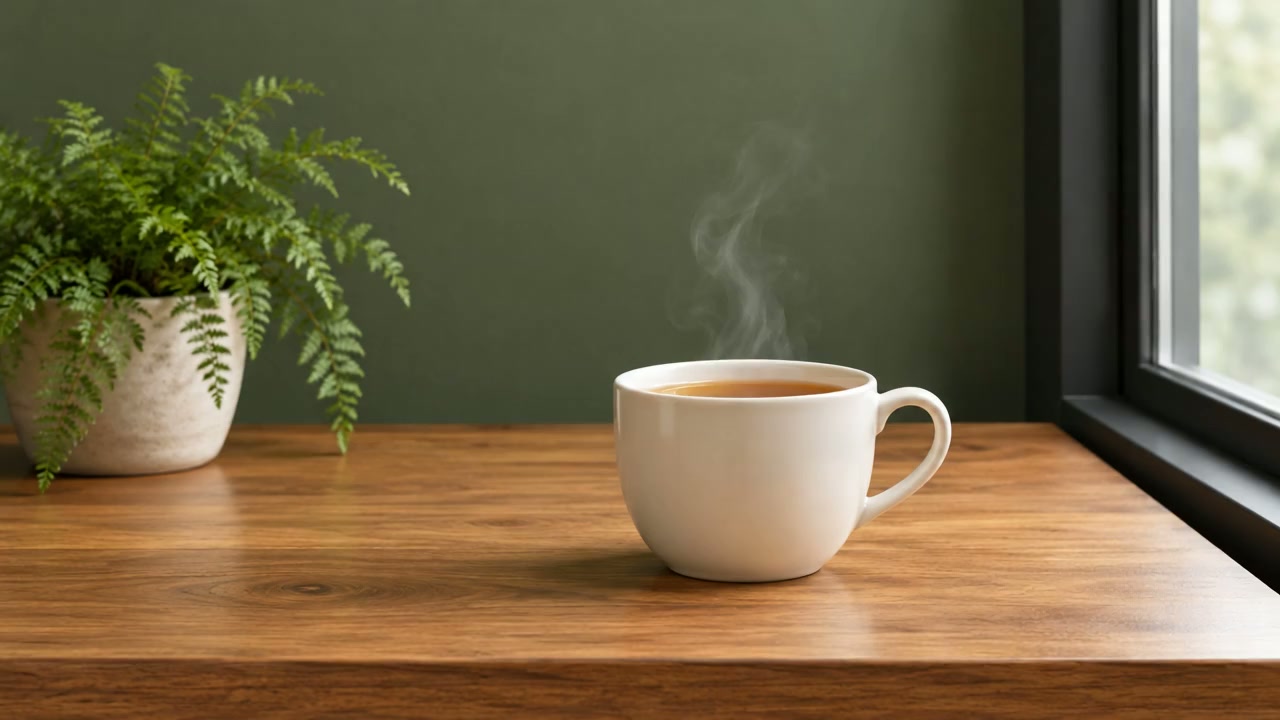
Starts only when you press Play. Stop returns to the first frame.
What actually happened: Steam curls upward and forms changing wisps above the cup. The cup stays recognizable, but its position and the surrounding framing drift slightly despite the locked-camera request. Watch the cup rim and window edge as references.
Exact motion prompt
Thin translucent steam slowly curls upward from the cup. Keep the cup, fern leaves, tabletop and straight window frame still. Locked camera, no zoom. Preserve the original lighting, cup shape and composition. No new objects.
Watch the original video
Download original videoExperiment 03 · 5 seconds · 720p
Move the camera toward the same cup
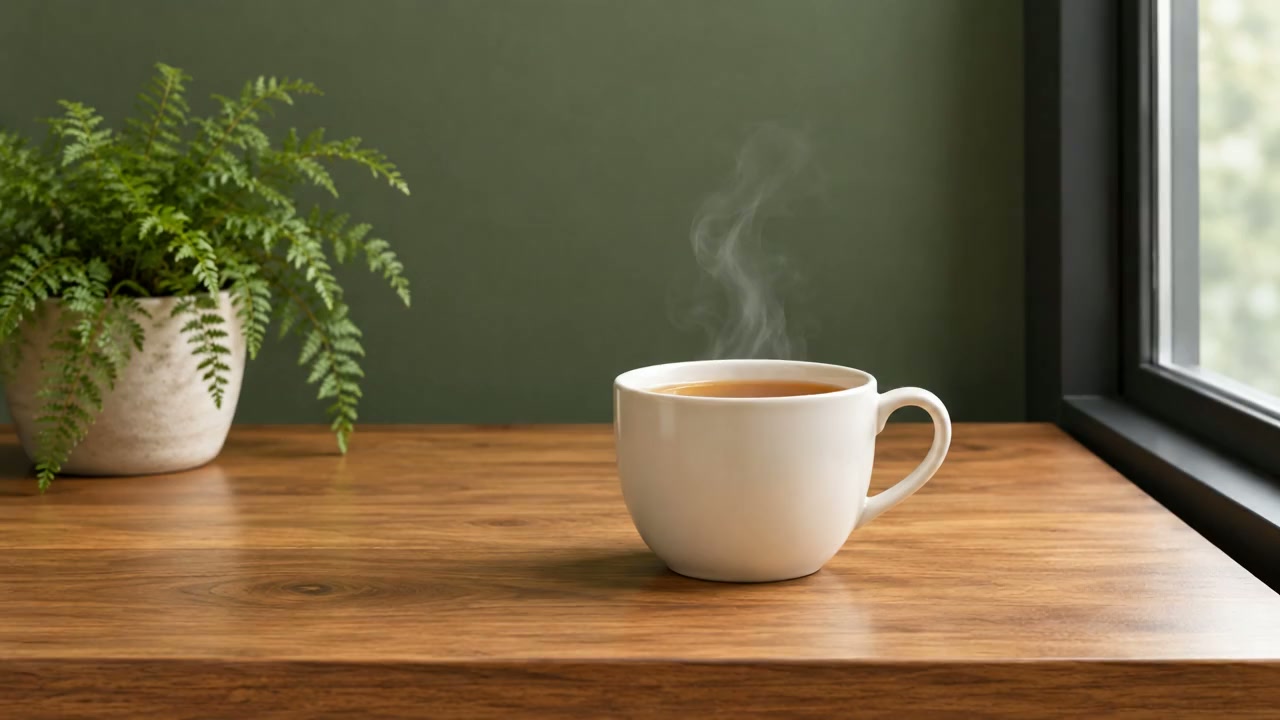
Starts only when you press Play. Stop returns to the first frame.
What actually happened: The camera moves noticeably closer: the cup grows large and the fern and window move toward the edges. The approach is stronger than the requested short, subtle push-in. Its ending does not match the opening, so the repeating GIF has a visible restart.
Exact motion prompt
The camera makes a very slow, short push toward the cup. The cup remains rigid and stationary on the table. Preserve its shape, handle, fern and straight window frame. Keep the lighting consistent. No rotation, no scene change, no new objects. Very subtle natural steam.
Watch the original video
Download original videoWhen the animation does not look right
Watch the entire clip before trying again. Compare it with the source and change one instruction at a time, so you can tell whether the change helped.
- Faces or objects change shape
- Reduce the movement or use a clearer source. Replace a large turn with a small action. Requests to preserve a face or object cannot guarantee perfect consistency.
- The camera moves too much
- Remove broad words such as cinematic. Ask for a locked camera and one visible subject movement. Check the result again rather than assuming the instruction will be obeyed.
- Almost nothing moves
- Name a visible part and a physical action, such as the flower's upper stem swaying gently. Avoid vague directions like bring this picture to life.
- The repeat has a noticeable jump
- Compare the first and last frames. Trim or blend the ends in a separate editor if needed. Repeating a GIF does not automatically make the animation seamless.
- The request fails or hits the free limit
- Check the file format, size and settings, and read the error before retrying. A shared network can use the same daily allowance. When the limit is reached, wait until the next UTC day instead of repeatedly submitting.
Save a video, or convert a short GIF preview
Keep the generated video as your main file. For a short, silent web preview, open it in a video-to-GIF converter, trim the useful section, and start around 480–640 pixels wide at 8–12 frames per second. Reduce width or frame rate if the GIF is too large. Inspect moving edges after conversion and compare the first and last frames. Keep the video available when viewers need more detail. GIF conversion is a separate step; this site's generator does not export GIF directly.
Photo animation questions
How can I animate a photo for free?
Open the photo animator, upload a supported image, enter a motion prompt and generate a clip without logging in. The current allowance is up to three requests per IP per UTC day, with shared-network and service-availability limits. Failed provider requests may count.
Can I animate a photo on my phone?
Use the tool in your phone's browser and tap the upload area to choose a JPG, PNG or WebP up to 10 MB. Keep the browser tab open while it processes. If your photo is HEIC, export a supported copy before uploading.
Can I animate only one part of a picture?
You can request that one part moves while everything else stays still. This tool does not offer a selection mask or motion brush, so review the generated background and subject for unintended changes.
Will the example settings produce the identical animation?
No. The same image, prompt, length and resolution give you a comparable experiment, but generation can vary. The GIF previews show particular completed runs, not a guaranteed result.
Can I animate an old family photo?
You can use a clear scan, but begin with very small movement and inspect faces closely. Animation can invent expressions and alter features. Describe the result as an AI interpretation rather than a recovered recording. See the portrait and old-photo guide for preparation advice.
Will I download a GIF or a video?
The animator returns a video link. The GIFs in this article were converted from completed videos locally. To make your own GIF, save the video and convert a short section afterward.